How to Disable USB Drives on Your Computer? A Lightning-Fast and Simple Guide

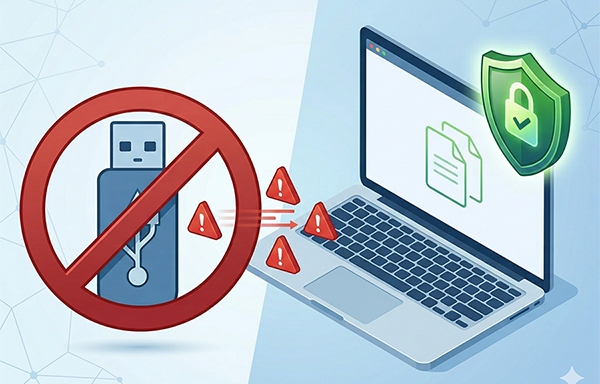
USB devices (especially USB flash drives) are incredibly convenient mobile storage tools, but they are also “high-risk channels” for data leaks and malware intrusions.

Statistics show that over 60% of internal data breach incidents are directly related to USB misuse. Traditional methods like “verbal bans” or setting “read-only permissions” are no longer enough to stop users from bypassing restrictions (such as formatting the drive).

How can you stop USB storage devices at the source? How do you make a USB drive unrecognizable by the computer?

Why Do Businesses Need to Make USB Drives “Invisible”?

Beyond preventing unauthorized file copying, USB drives can carry Autorun viruses (malicious programs that run automatically), exploit shortcut vulnerabilities to steal data, or even be modified into hardware-level eavesdropping devices.

Furthermore, industries like finance, healthcare, and government have strict data protection regulations. Organizations must leave “technical control traces” to prove they have taken “reasonable measures” to prevent internal data leakage.

How to Disable USB Devices?

Today, we’ll show you a rapid solution to manage unauthorized USB storage. We will use a professional computer control tool—”Best Disk Lock”. It forces the computer to “refuse response” at the hardware identification stage, ensuring the system remains completely unaware of the plugged-in device.

Operation Process

1. Download and install “Best Disk Lock.” Double-click the desktop shortcut and enter the default software password: 888888.
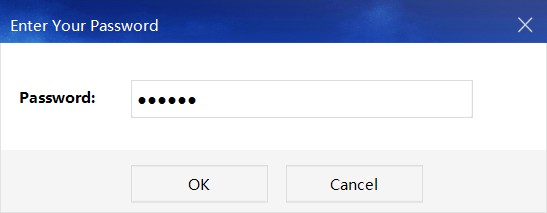
enter password

2. Select the [USB Control] feature. Check the box for “Disable USB Storage Devices.”
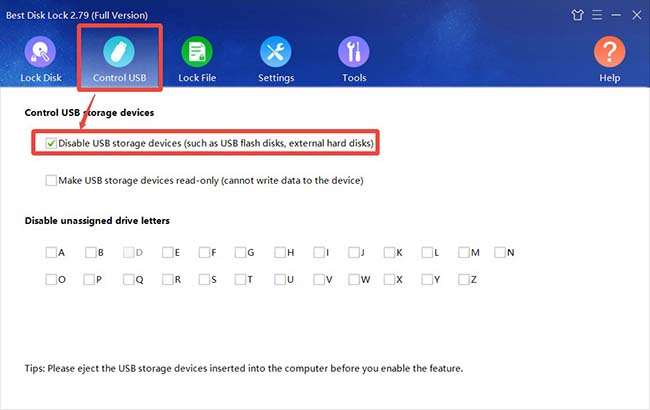
disable usb

3. Confirm the action. In the pop-up prompt window, select [Yes], and the function will take effect immediately.
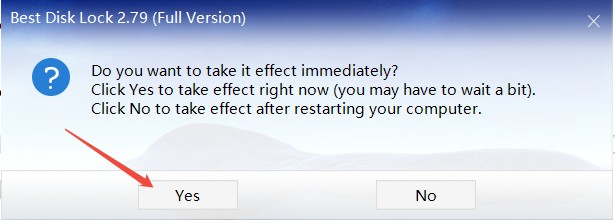
confirm window

Once activated, if anyone attempts to use a USB drive to copy files, the computer will simply “ignore” its existence. No drive letter will appear, and the device will not even show up in the Device Manager. This effectively blocks the possibility of data exfiltration at the operational level.

Note: Do not insert any USB storage devices into the computer before enabling this function.

For enterprises, this is more than just a tool—it is a management philosophy of “using technology to regulate behavior.” For individual users, it acts as an “invisible shield” to protect private files, such as family photos and financial records.
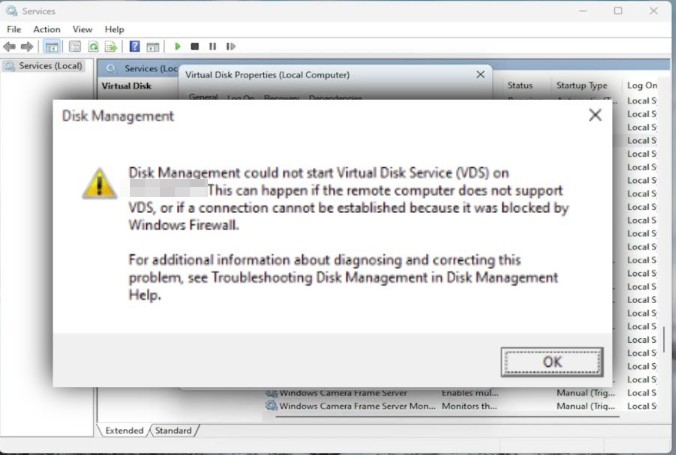
Disk Management Cannot Start Virtual Disk Service (VDS) on Computer—Quickest Fix!

Recently, some users have reported that Disk Manager on their Windows computers cannot be opened, with a prompt stating: “Disk Management cannot start the Virtual Disk Service (VDS) on the computer…” What causes this issue?

virtual disk service

Cause of the Problem​

Typically, this occurs because the Virtual Disk service is not running, is misconfigured, or system components are damaged.

Solution​

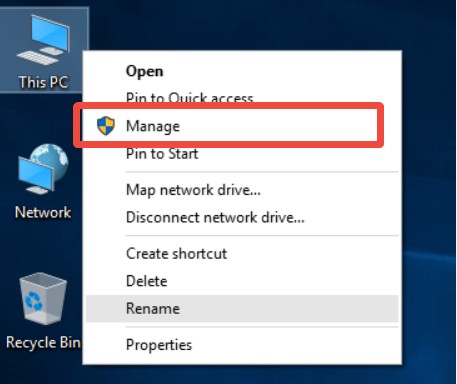
1. Right-click on the This PC/Computer​ icon and select [Manage].

Manage

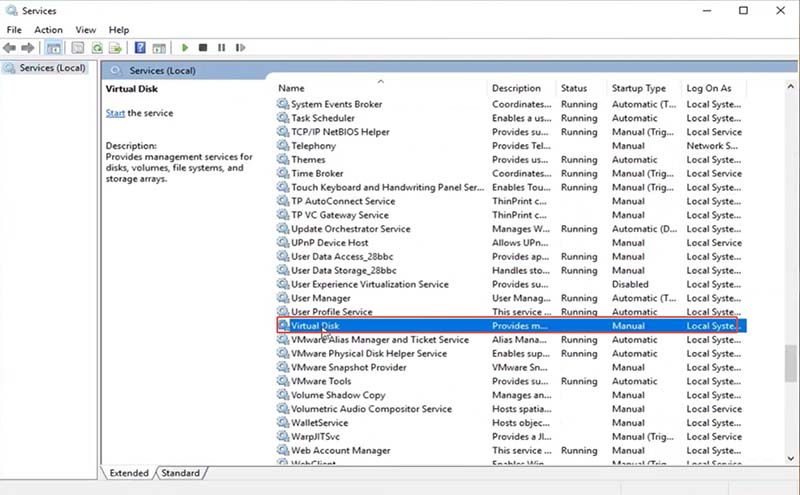
2. Click on [Services], locate [Virtual Disk]​ in the list, right-click it, and choose [Properties].

virtual disk service

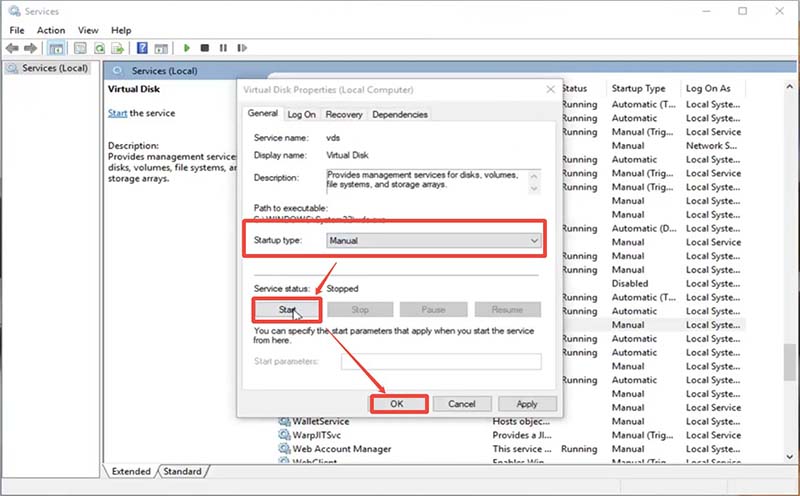
3. In the Properties window, change the startup type to [Manual], then click OK​ to apply the changes.

virtual disk service

Following the above steps can quickly resolve the issue of Disk Management failing to open. If you’re experiencing the same problem, give it a try!

Special Cases​

If the issue persists after following the steps above, consider whether any interfering software (such as UltraISO, virtual machine tools, etc.)​ is installed on the computer. Uninstall such software promptly, then restore the Virtual Disk service to normal operation.

How to disguise a folder with Best Folder Encryptor?

Looking for a way to hide folders without encryption?​​ Best Folder Encryptor’s “Disguise Folder” feature lets you conceal files by making folders appear as system tools (e.g., Control Panel). Here’s how to use it safely and effectively.

What is Folder Disguise?

Folder disguise is a visual protection method that replaces a folder’s contents with system interfaces. Unlike encryption, it doesn’t secure data with passwords—instead, it prevents unauthorized access by camouflaging the folder’s appearance.

Key benefits​​:

  • Instantly hide sensitive files without complex passwords
  • Bypass folder locks for users who forget passwords
  • Reversible protection (no data loss)
  • How to Disguise a Folder in 3 Steps

    Step 1: Launch the Software
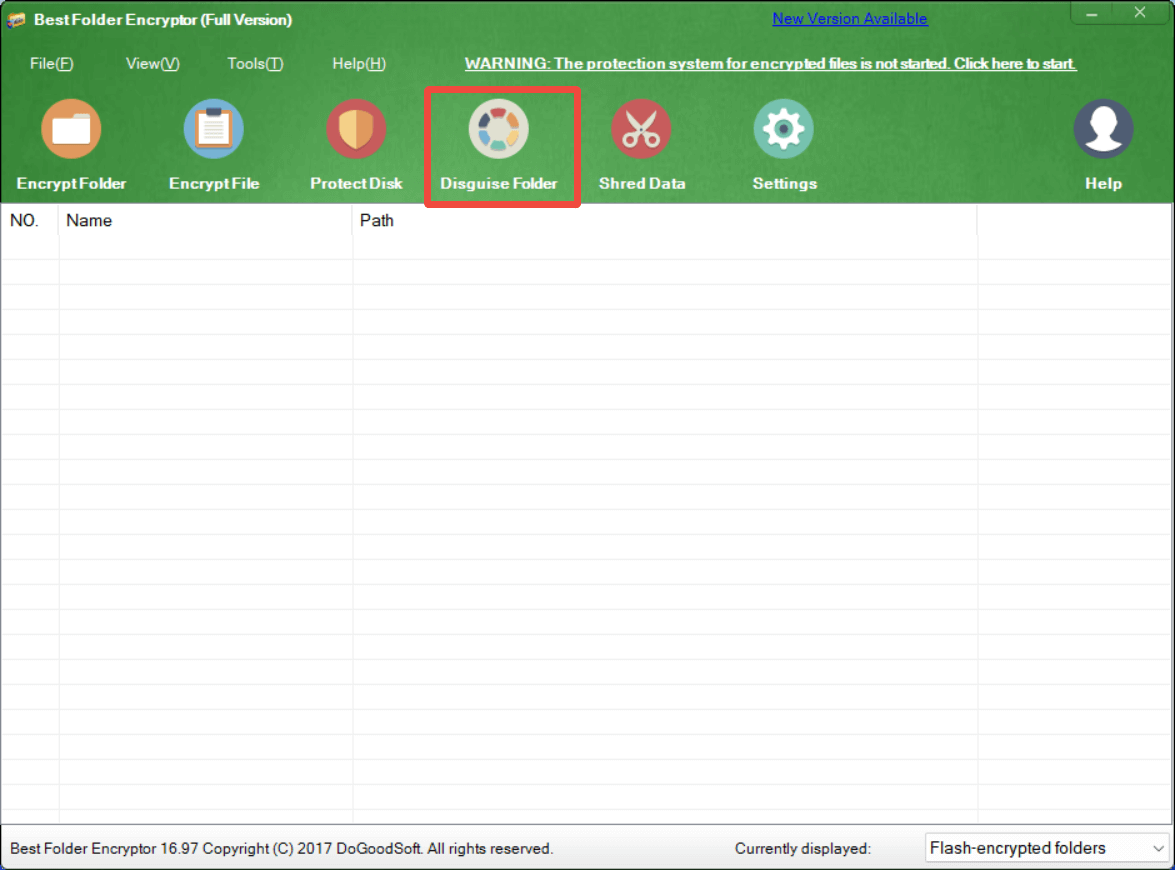
    Open Best Folder Encryptor and click the ​​”Disguise Folder”​​ button on the main interface.
    the feature Disguise Folder
    Step 2: Select Target Folder
    Choose the folder you want to disguise from the file browser. Supported folders can be on any local drive.

    Step 3: Choose Disguise Type
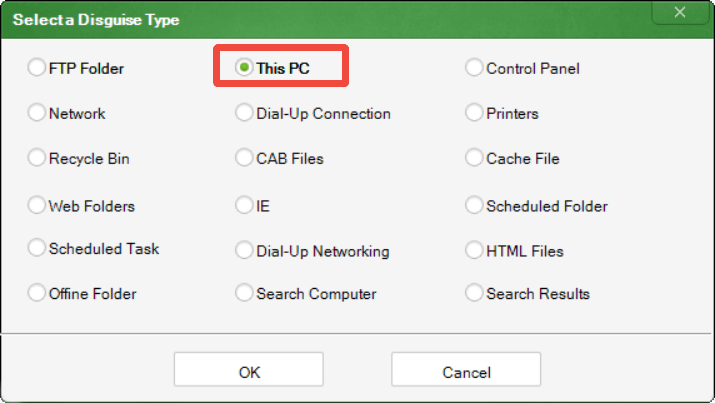
    Pick a disguise template from the dropdown menu,such as Control Panel, Recycle Bin and Network Connections.
    disguise template
    Example: Selecting “Control Panel” will make your folder display real Control Panel contents when opened.

    How to Access a Disguised Folder

    1. Open Best Folder Encryptor
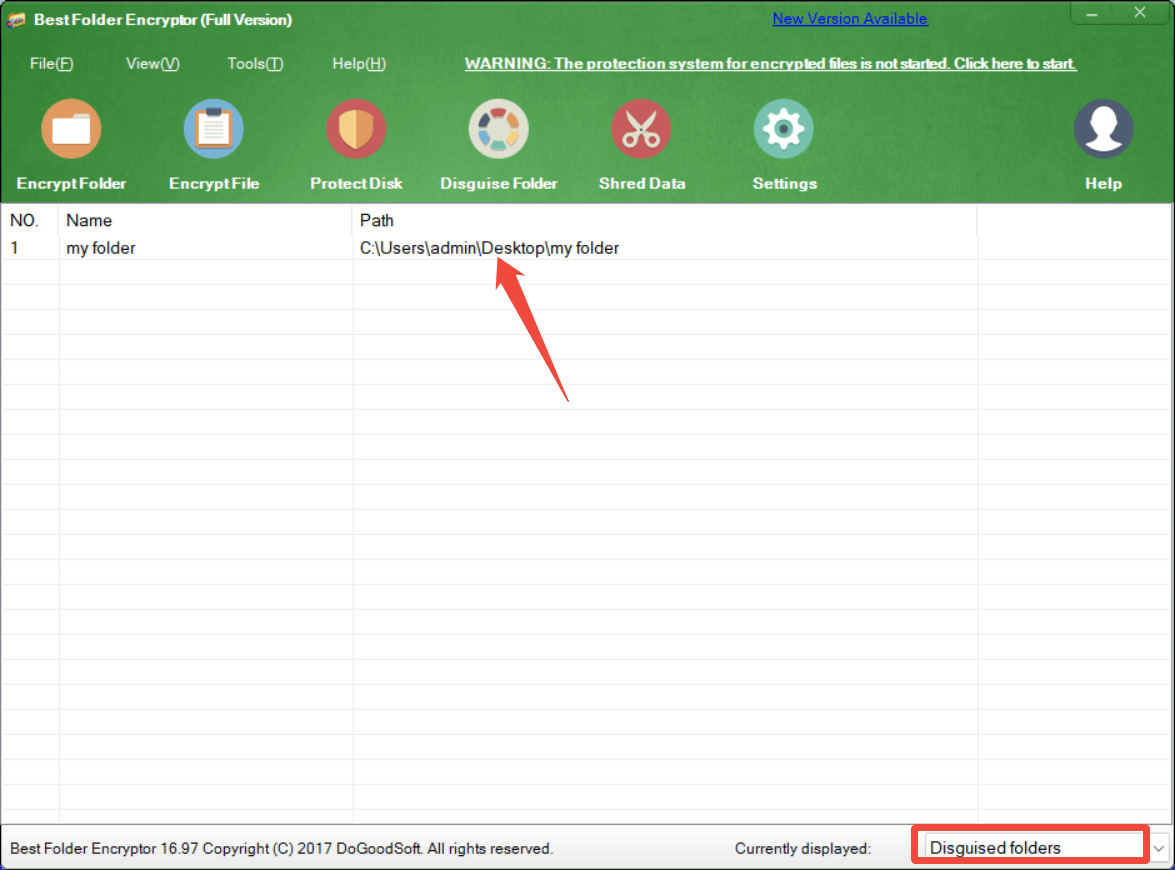
    2. Click ​​”Disguised Folders”​​ at the bottom-left corner
    3. Select the disguise record from the list
    4. Click to open and use files normally

    how to access a disguised folder
    The folder will automatically revert to disguise mode after closing.

    How to remove Folder Disguise:

    1. Open Best Folder Encryptor
    2. Access the ​​”Disguised Folders”​​ list
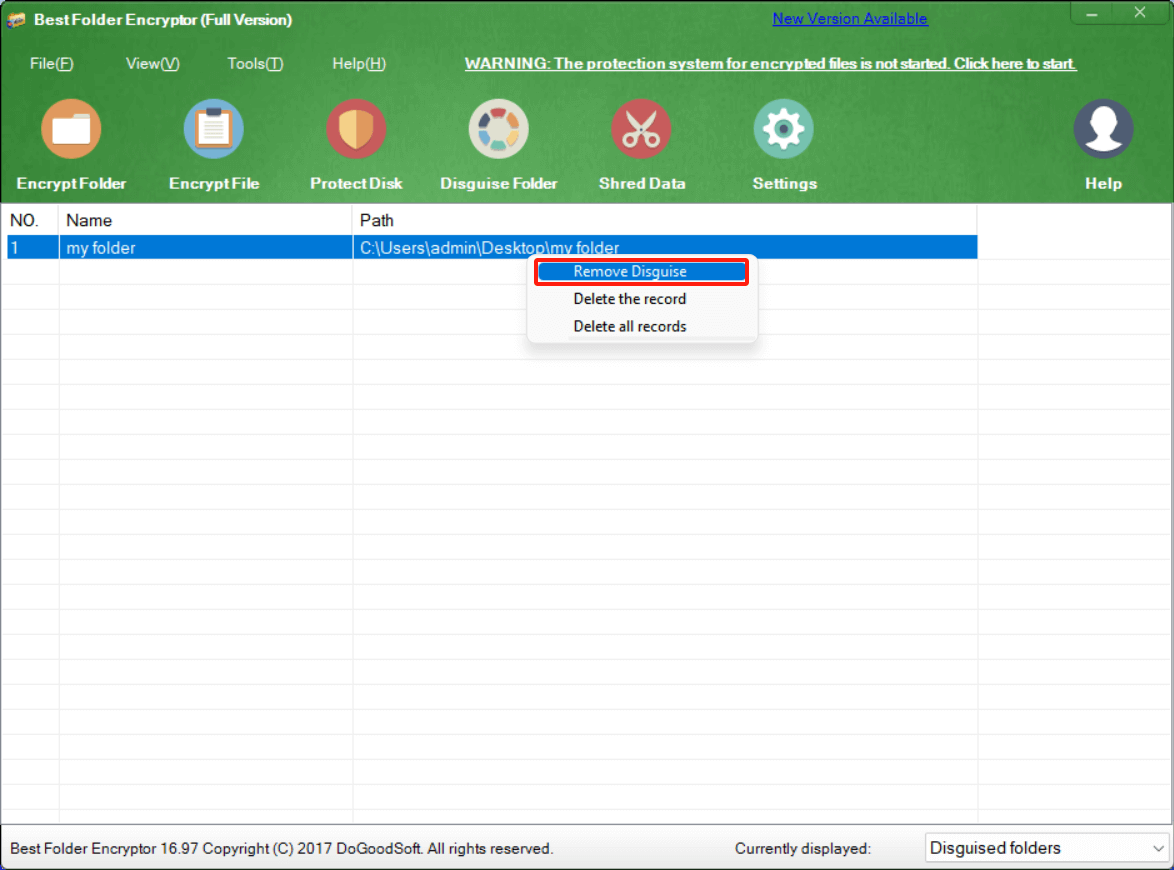
    3. Right-click the record and select ​​”Remove Disguise”​​
    4. Confirm to restore the original folder view

    remove folder disguise

    Conclusion

    Best Folder Encryptor’s folder disguise feature provides a quick and easy way to visually hide your folders without the complexity of encryption. Whether you need to temporarily conceal files during a presentation or protect sensitive data from casual snoopers, this feature offers a simple solution. Just remember that while effective for visual hiding, it does not provide the security of encryption for your most sensitive files.

    For best results, combine this feature with Encrypt Folder and Encrypt File to ensure your data remains safe. Try it today and experience the convenience of visual folder protection!

  • Download Best Folder Encryptor
  • Learn about Folder Encryption
  • How to encrypt a file with Best Folder Encryptor?

    Best Folder Encryptor is a professional file encryption software. It features superfast with high security and confidentiality.

    With advanced encryption algorithms, the encrypted files cannot be decrypted without the correct password, and are prevented from copy, deletion and movement.

    You can encrypt a file with Best Folder Encryptor using these two methods:

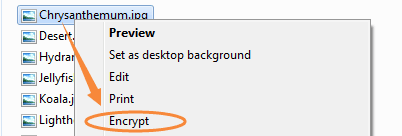
    Method 1: Right-click on the file you want to encrypt, and select [Encrypt] in the pop-up menu.

    Encrypt a file

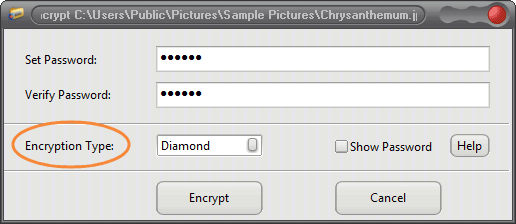
    Then set the encryption password, choose the encryption type, and click “Encrypt”.

    set password

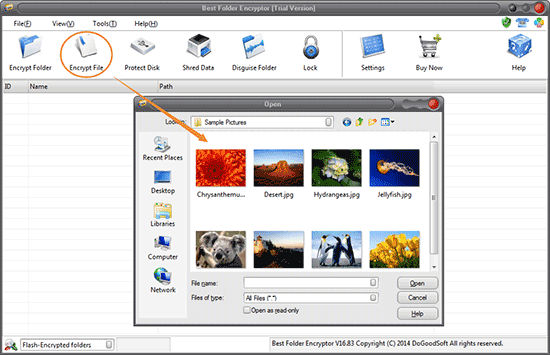
    Method 2: Run Best Folder Encryptor, click the [Encrypt File] button, and select the file you want to encrypt in the pop-up window, click “OK”.

    Encrypt a file

    Then set the encryption password, choose the encryption type, and click “Encrypt”.

    set password

    Warm Reminder:

    1. Best Folder Encryptor offers two file encryption types to meet the needs of various users. These include: Diamond Encryption and Portable Encryption.

    2. The Diamond Encryption and Portable Encryption have the highest encryption strength. The encrypted files cannot be decrypted if you haven’t correct password. Please remember the encryption password firmly.

    How to encrypt a folder with Best Folder Encryptor?

    Best Folder Encryptor is a professional folder encryption software. It features superfast with high security and confidentiality.

    With advanced encryption algorithms, the encrypted folders cannot be decrypted without the correct password, and are prevented from copy, deletion and movement.

    You can encrypt a folder with Best Folder Encryptor using these two methods:

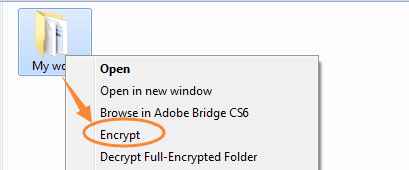
    Method 1: Right-click on the folder you want to encrypt, and select [Encrypt] in the pop-up menu.

    encrypt folder

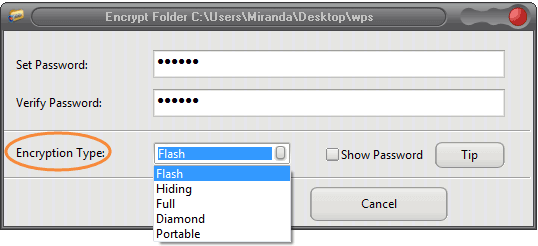
    Then set the encryption password, choose the encryption type, and click “Encrypt”.

    encrypt folder

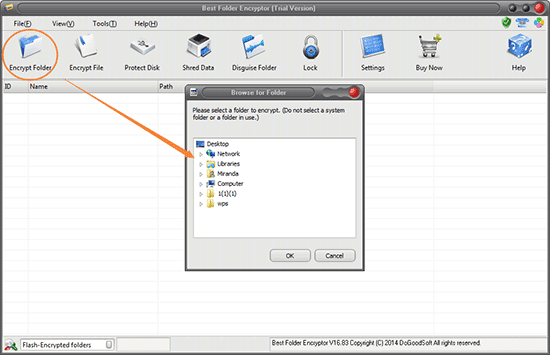
    Method 2: Run Best Folder Encryptor, click the [Encrypt Folder] button, and select the folder you want to encrypt in the pop-up window, click “OK”.

    encrypt folder

    Then set the encryption password, choose the encryption type, and click “Encrypt”.

    Warm Reminder:

    1. Best Folder Encryptor offers five different encryption types to meet the needs of various users. These include: Flash Encryption, Hidden Encryption, Full Encryption, Diamond Encryption, Portable Encryption.

    2. The Diamond Encryption, Full Encryption, and Portable Encryption have the highest encryption strength. The folders encrypted by these three encryption types cannot be decrypted if you haven’t correct password. Please remember the encryption password firmly.

    Folder Encryption: Protecting Your Sensitive Data with Best Folder Encryptor

    In an era where digital threats are increasingly sophisticated, safeguarding your personal, financial, or work-related data is more crucial than ever. One effective way to keep your sensitive files secure is by using folder encryption.

    encryption

    Folder encryption allows you to lock your files with a password, ensuring that only authorized users can access them.

    In this article, we’ll explore the concept of folder encryption, its importance, and why Best Folder Encryptor is one of the best tools for the job.

    What is Folder Encryption?

    Folder encryption is the process of securing a folder by converting its contents into an unreadable format that can only be restored to its original state with the correct password. It essentially acts as a lock on your folder, preventing unauthorized access to your sensitive data.

    folder lock

    Folder encryption ensures that even if someone gains physical access to your device, they cannot open or view your files without the correct password.

    Why is Folder Encryption Important?

    In today’s digital age, there are several compelling reasons to encrypt your folders:

    1. Prevent Unauthorized Access: Folder encryption ensures that even if someone gains access to your computer or storage device, they cannot open your encrypted folders without the correct password.

    2. Protect Sensitive Information: Whether it’s personal data like passwords, financial records, or confidential work documents, encryption keeps your sensitive information safe from leakage.

    3. Ensure Privacy: Folder encryption protects your privacy by ensuring that your data is not exposed even if your device is lost or stolen.

    4. Compliance with Regulations: Many industries require data protection measures to comply with regulations. Encrypting folders helps meet these requirements.

    Best Folder Encryptor: A Comprehensive Solution

    When it comes to folder encryption, Best Folder Encryptor is one of the most reliable and user-friendly tools available. Here’s why:

    Best Folder Encryptor

    * Ease of Use: Best Folder Encryptor is designed with both beginners and advanced users in mind. Its intuitive interface makes it easy to encrypt folders with just a few clicks, without requiring technical knowledge.

    * Strong Encryption Algorithms: Best Folder Encryptor has 5 folder encryption methods, like Diamond-encryption uses advanced encryption standards, ensuring that your data is highly secure.

    * Password Protection: You can set a strong password for your encrypted folder, and Best Folder Encryptor ensures that your files cannot be accessed without the correct password.

    * Portable Encryption: Portable-encrytpion method allows you to create encrypted folders that can be carried around on external drives or USB sticks. The encryption is portable, meaning you can take your secure files with you wherever you go, without worrying about data breaches.

    * Multiple Encryption Options: You can choose from a variety of encryption methods based on your needs, whether you want to encrypt a single folder, a file or multiple folders.

    * File Shredding: If you need to securely delete files, Best Folder Encryptor includes a file shredding feature that ensures deleted files cannot be recovered by anyone.

    How to Use Best Folder Encryptor

    Using Best Folder Encryptor is simple and straightforward:

    1. Download and Install: First, download the Best Folder Encryptor software from its official website and install it on your computer.

    2. Select the Folder: Right-click the folder you want to encrypt and select Encrypt.

    3. Set a Strong Password: Create a strong password to protect your folder. Ensure that the password is unique and difficult to guess.

    4. Encrypt the Folder: Click on the encryption option to secure your folder. The software will encrypt the folder, making it accessible only with the correct password.

    5. Access the Folder: To access your encrypted folder, just open the folder, enter your password, and you can view or modify the contents. When you close the folder, the folder will automatically return to its encrypted state.

    Matters Needing Attention

    1. Be sure to decrypt the encrypted files/folders first before you back up or move them. Never operate the encrypted folders directly.
    2. Please remember the encryption password. For diamond-encryption, full-encryption and portable-encryption, if you forget the password, you will not be able to open and decrypt the folder, and there is no password retrieval function.

    What can I do if I forget the password for my encrypted files?

    To be safer, most people would like to protect their important files and folders by encrypting them with a password. While it’s very common for people to forget the password because they should remember many different passwords.
    If you choose Best Folder Encryptor to encrypt your files and folders, and you forgot the encryption password, what should you do?

    1 Confirm Encryption Type

    There are five encryption types in Best Folder Encryptor – flash encryption, hiding encryption, diamond encryption, full encryption and portable encryption.

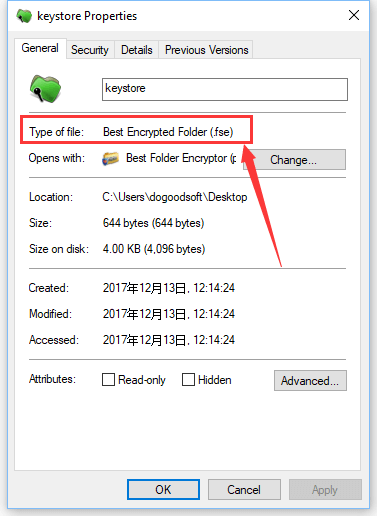
    Right click on the encrypted file or folder in Windows Explorer, select Properties, and you will see “Type of file”. From here we can confirm the encryption type.

    2 Confirm License Type

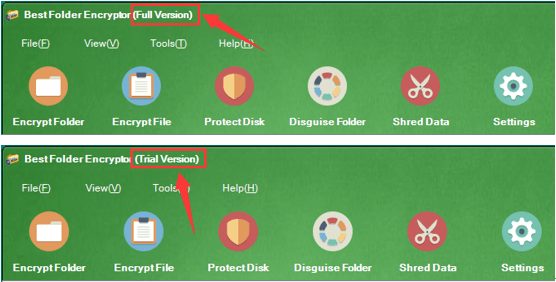
    For flash and hiding encryption, you may recall your password with the password prompt if you are using a trial version of software. You can retrieve the password with a full version.

    What can I do if I forget the password for my encrypted files?

    However, there is no way to recover the password of diamond-, full- or portable-encrypted files and folders if you forget it. If so, your encrypted files and folders will not be decrypted and opened until you remember the password.

    3 Retrieve Encryption Password

    If you are using a trial version, and forgot the password of flash- or hiding-encrypted folder, please contact us for the password prompt.

    If you are using a full version of software, please do as follows:

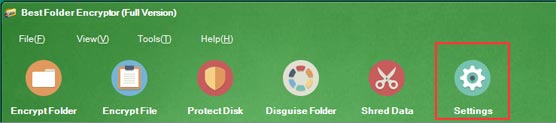
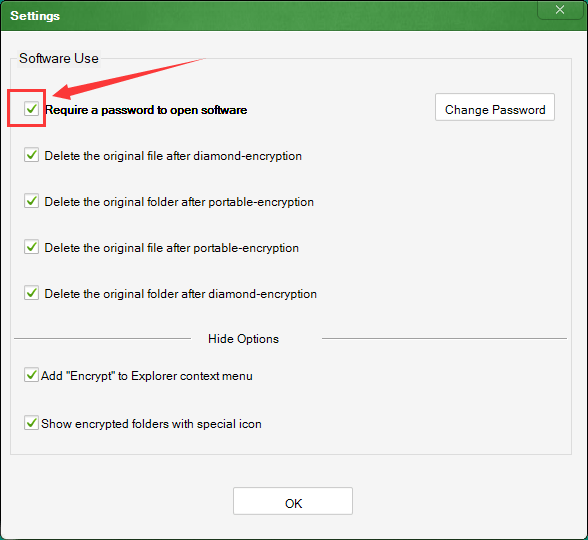
    1. Launch Best Folder Encryptor, and click Settings.
    What can I do if I forget the password for my encrypted files?

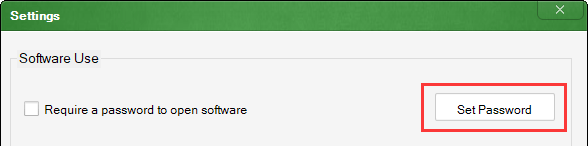
    2. Press the “Set Password” button to set an admin password. If you have set before, skip this step.

    What can I do if I forget the password for my encrypted files?

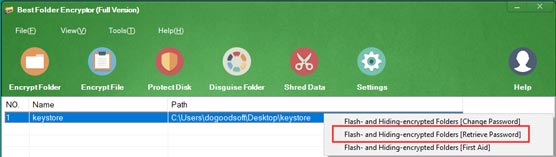
    3. Right click on the record of the flash- or hiding-encrypted folder in the software, select “Flash- and Hiding-encrypted Folders[Retrieve Password]”.

    What can I do if I forget the password for my encrypted files?

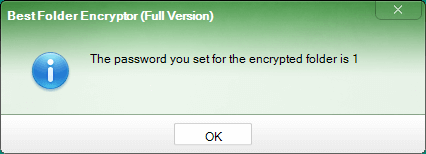
    4. Enter the admin password you set in step 2 and click OK, then you will see your password.

    What can I do if I forget the password for my encrypted files?

    Please note that if your file and folder is encrypted with diamond encryption, full encryption or portable encryption, whether it is a trial version or full version, there is no way to recover your password.

    What if I want to use Best Folder Encryptor on another computer?

    “I have used Best Folder Encryptor on my laptop for two years, now I want to use it on another computer. What can I do?”

    If you purchase a license of Best Folder Encryptor, you will receive a registration code, with which you can activate Best Folder Encryptor on one computer. While if you change a new computer, should you have to purchase a license again? Of course not. Then what should we do?

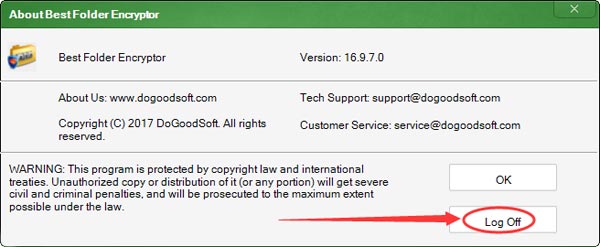
    In the new version of Best Folder Encryptor(v16.97), we added a new feature — Log Off.

    If you want to replace a new computer, and continue to use Best Folder Encryptor, please first log off in the software on your old computer.

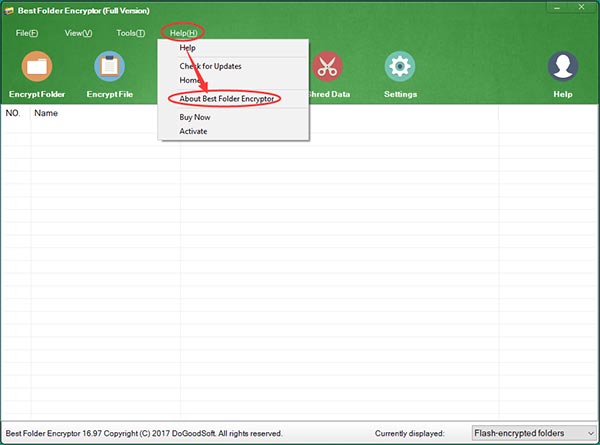
    1. Launch Best Folder Encryptor, click “Help”, select “About Best Folder Encryptor”.

    What if I want to use Best Folder Encryptor on another computer?

    2. You will see the “Log Off” button. Click “Log Off” and wait for a moment.

    What if I want to use Best Folder Encryptor on another computer?

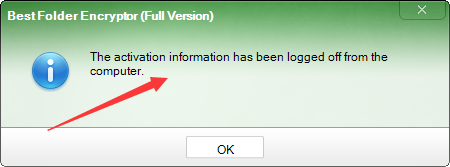
    3. Then you will see the message “The activation information has been logged off from the computer.”

    What if I want to use Best Folder Encryptor on another computer?

    4. Install Best Folder Encryptor on your new computer, and activate it with your registration code. The code is the one that you purchased before.

    Important Notice

    Before you change the computer, please decrypt your encrypted files and folders on the old device, then transfer them to another computer. Please note that DO NOT directly copy or move the encrypted files to another computer.

    But, if your old computer has been crashed or lost, you cannot log off. What you can do?

    Please do not hesitate to get in touch with us at support@dogoodsoft.com, we will get you the help you need.

    How to open Best Folder Encryptor if you forgot the admin password?

    “I used the encryption software Best Folder Encryptor to encrypt my files. To be safer, I have set an admin password for the software. But now I forgot the password. Is there a way to retrieve the admin password?”

    It’s very common for users to set an admin password for the encryption software Best Folder Encryptor, which is safer for the encryption files. But, what if you forgot the password? If you can’t remember or retrieve the password, the encryption software will not be opened.

    At this situation, please read the following method to recover your admin password.

    How to Retrieve Admin Password:

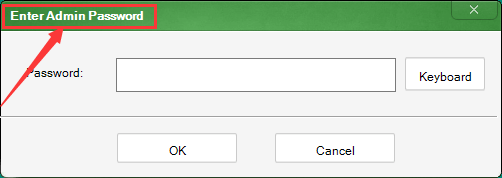
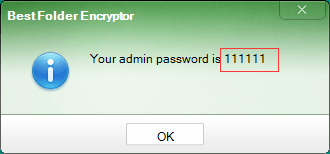
    1. Launch Best Folder Encryptor, and you will see the window “Enter Admin Password”.

    How to open Best Folder Encryptor if you forgot the admin password?

    2. Enter SOS in the Password field(Letters are not case-sensitive), then click OK.

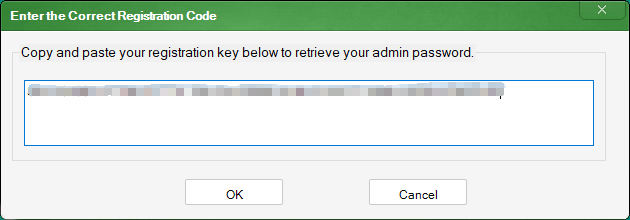
    3. Copy and paste your registration key to the pop-up window, and click OK. Note: The registration key must be the one that you activate the software.

    How to open Best Folder Encryptor if you forgot the admin password?

    4. Now you can see your admin password and be able to open the encryption software Best Folder Encryptor.

    How to open Best Folder Encryptor if you forgot the admin password?

    When you retrieve the admin password, you can cancel or change it.

    How to Cancel Admin Password:

    1. Open Best Folder Encryptor, click the Settings button.

    How to open Best Folder Encryptor if you forgot the admin password?

    2. Uncheck the box that says Require a password to open software.

    How to open Best Folder Encryptor if you forgot the admin password?

    3. Enter the admin password for confirmation, and click Ok.

    4. Now the admin password has been cancelled. It is no longer need to enter the admin password before you open Best Folder Encryptor.

    How to Change Admin Password:

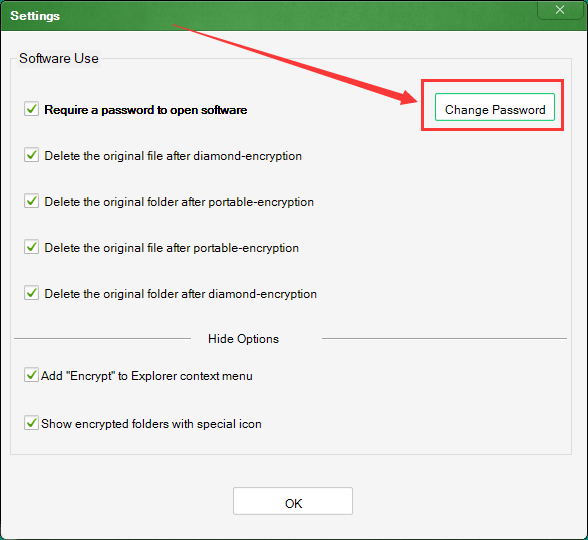
    1. Open Best Folder Encryptor, click the Settings button.

    How to open Best Folder Encryptor if you forgot the admin password?

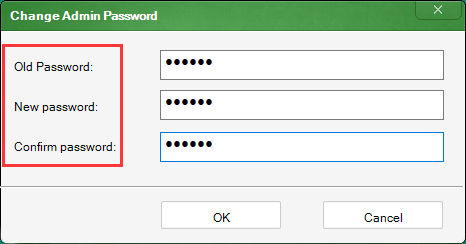
    2. Press Change Password, enter your old password, and then your new password twice, and click OK.

    How to open Best Folder Encryptor if you forgot the admin password?

    How to open Best Folder Encryptor if you forgot the admin password?

    3. Your admin password has been changed successfully.

    How to encrypt iPhone and Android, and why you should do it now

    How to encrypt iPhone and Android, and why you should do it now

    Apple’s fight with the FBI may be over for the time being, but this high-profile fight about user privacy and state security may have puzzled some smartphone users. When is an iPhone or Android device encrypted? And how does one go about securing the data on them?

    iPhone

    It’s pretty simple actually: as long as you set up a password or PIN for the iPhone or iPad’s lockscreen, the device is encrypted. Without knowing the access code, nobody can unlock it, which means your personal data including photos, messages, mail, calendar, contacts, and data from other apps, is secured. Sure the FBI can crack some iPhones, but only if they’re included in criminal investigations, and only if the recent hacks work on all iPhones out there.

    If you don’t use a lockscreen password, you should do it right away. Go to Settings, Touch ID & Passcode, tap on Turn Passcode On and enter a strong passcode or password.

    Android

    As CNET points out, things are a bit more complicated on Android.

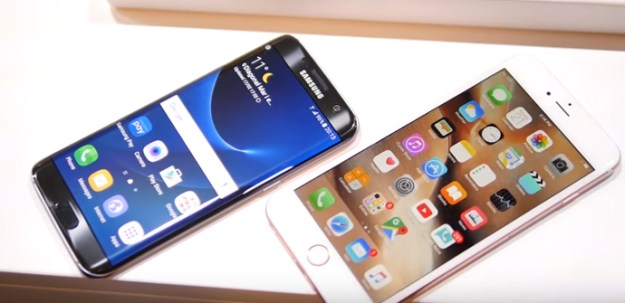
    The newer the device, the easier it is to get it done. In this category, we have Nexus devices, the Galaxy S7 series, and other new handsets that ship with Android 6.0 preloaded. Just like with the iPhone, go to the Settings app to enable a security lock for the screen, and the phone is encrypted.

    With older devices, the encryption procedure is a bit more complex, as you’ll also have to encrypt the handset manually. You’ll even have to do it with newer devices, including the Galaxy S6 and Moto X Pure. Go to Settings, then Security then Encrypt phone. While you’re at it, you may want to encrypt your microSD card as well, so data on it can be read on other devices – do it from the Security menu, then Encrypt external SD card. Once that’s done, you will still need to use a password for the lockscreen.

    CNET says there are reasons you should consider not encrypting your Android device, like the fact that a device might take a performance hit when encrypted. The performance drop may be barely noticeable on new devices, but older models and low-end handsets could suffer.